ClickUp Project Management Software
With ClickUp you get a beautiful web-based project management software. From simple task management to basic project management, you can cover a lot with it. With an interesting hierarchy concept of Workspaces, Spaces, and Folders, the system can score points compared to many other project management tools when it comes to structuring projects, even though true support for WBS and project structure is lacking. ClickUp is also one of the few project management tools that supports the Getting Things Done method.
1. General Functionality
Operations
ClickUp is only available in the cloud as Software as a Service (SaaS) and cannot be operated on your own servers. The manufacturer guarantees compliance with European data protection standards. Data is stored in the USA and Europe.
Projects and Project Types
In ClickUp project management software, items are managed in lists. Lists can be organized in folders. Folders belong to spaces. It is not possible to create multiple levels of spaces or folders. If you use a space for a project, only one level of sub-projects in the form of folders could be represented.
In ClickUp project management software, templates for spaces can be created from existing spaces. However, the configuration of existing spaces based on a specific template cannot be centrally changed.
Items and Item Types
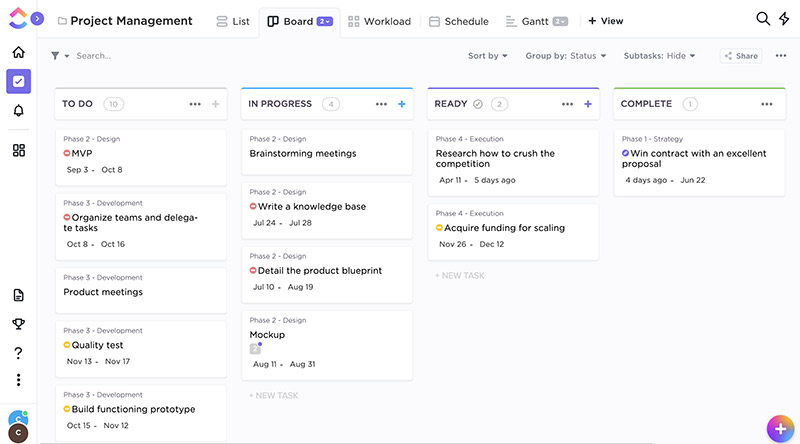
In task and project management, almost everything revolves around “items”. In ClickUp project management software, an item always belongs to a list, comparable to an item type. The list defines, for example, the attributes of an item belonging to it. You can create any number of custom lists.
Item Hierarchies
ClickUp offers exactly one hierarchy level. These “sub-tasks” are partly treated and displayed differently from the “real” items. A hierarchical structuring of work packages cannot be realized this way.
The type of subordinate items cannot be restricted depending on the type of the parent item. It is fixed to the list type of the parent item. This means, for example, that it cannot be prevented that an item of type “Car” can be subordinated to an item of type “Engine”.
Notifications
ClickUp has a simple, configurable notification system.
Notifications can be sent via email, in the browser, or to a mobile device. For example, it is not possible to send notifications only when an already closed item is reopened and at least two weeks have passed since closing. There is an @-mention function and a reminder function.
Access Permissions
Access rights in ClickUp are granted based on roles and project-specific. Permissions can be granted for:
- An entire project or workspace
- Item types such as tasks, action items, or bug reports
- Individual attributes such as the budget for an item
The permission system allows very precise control over who can see or modify what.
Custom roles with corresponding permissions cannot be defined.
Attributes
In ClickUp project management software, custom attributes can be configured without programming via the web interface.
A comprehensive selection of attribute types is available, such as labels, person selection, or date fields. However, the ability to define meaningful defaults is missing, e.g., default values for a start or end date.
Each space has its own set of attributes.
Input Forms
In ClickUp project management software, an input form can be defined for each list. The order of fields is not configurable. Each folder can have its own fields. There is no separate input form for creating a new item.
Dependencies
In project management and task management, items are often related to each other. For example, a task cannot be started before another one is completed. Or an item cannot be closed before a dependent item has been completed.
ClickUp project management software offers basic support for defining dependencies or links.
Custom link types can be added through plug-ins.
Dashboards
The system offers its users an overview page (cockpit, dashboard).
Each user has the option to use preconfigured dashboards or to assemble their own dashboard from an extensive list of dashboard tiles. Dashboards can be saved as templates and centrally assigned to users by system administrators. The following dashboard elements are available, among others:
- Average response time
- Average processing time
- Number of items in state X over time
- Activity stream
- Predefined filters
Reporting
Reports in ClickUp can only be created by exporting to CSV files.
User Management
Synchronization of ClickUp with a directory server is not available. ClickUp can be integrated with CAS and Shibboleth for true single sign-on. The system supports two-factor authentication.
User Interface and Usability
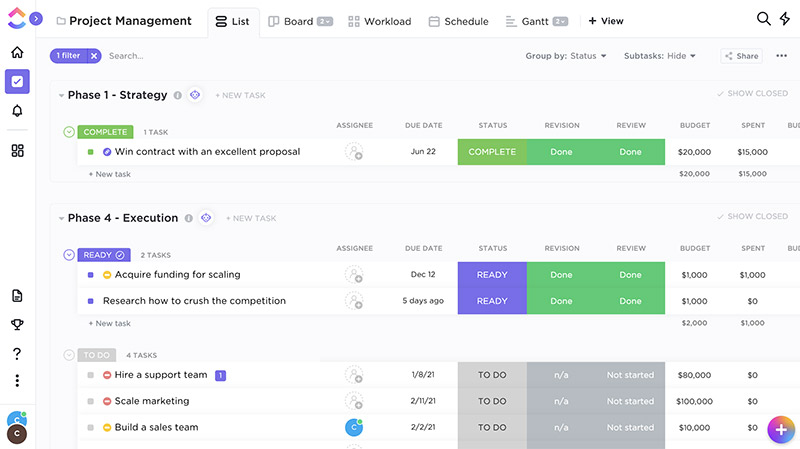
The software offers a clean, organized, and modern-looking user interface. Regular users can get started relatively quickly without training. Context-sensitive help supports you when something is not immediately obvious.
For configuration, you need to familiarize yourself with the basic concepts of ClickUp. There is material available in the form of tutorials, videos, slide sets, and user manuals. Training sessions are also offered.
The user interface can be customized to meet user requirements. The available menu items can be individually configured for each user or user group.
Interfaces and Extensibility
Through a comprehensive REST API, nearly all functions available in the user interface are also accessible in ClickUp. For example, users can be managed, projects can be created, modified, and deleted, or queries can be executed.
ClickUp cannot be extended by users; there are no suitable interfaces for this.
2. Task Management
Delegation
The software supports the delegation of items including follow-up. The delegator maintains the relationship to the item, and the follow-up date is personal to them. The delegator has an overview of the items they have delegated.
Deputy Function
In ClickUp project management software, it is possible to assign a deputy to each user. The deputy can step into the rights of the original user in case of vacation or illness and act on their behalf. It remains visible who actually triggered an action.
Recurring Tasks
Some tasks and deadlines repeat cyclically, e.g., every first Monday of the month. Handling such task series can be very helpful and time-saving in task management.
ClickUp allows the creation of recurring tasks just as you would expect from good calendar applications.
Time Tracking
ClickUp allows tracking efforts (time and money) for each item and assigning them to accounts. Accounts can be grouped into cost centers and released for projects.
There is the option to use timers in the application to automatically log the time spent. Reports provide an overview of who was working on which activities during any past time period.
Getting Things Done Method Support
The Getting Things Done method is a proven approach to personal work organization. It allows personal categorization of items such as personal follow-up dates or personal marking of items as favorites.
ClickUp fully supports the GTD method.
RACI Matrix Support
For task management and project management, the RACI method defines four item-specific roles through which project participants can be related to a task. Normally, roles are assigned for a project, not for an individual item. For example, there is a project manager or a Scrum Master for the entire project. RACI, on the other hand, allows roles to be assigned on a per-item basis.
ClickUp is one of the few systems on the market that has integrated the RACI matrix into its application logic and offers it in a way that makes the practical benefit immediately apparent.
Workflows
Workflows in task management systems are typically represented in two forms. The first method always relates to the workflow of an item that passes through various stages. The second method involves defining task sets and then processing them.
ClickUp does not have a graphical workflow editor. Using a text-based editor, simple conditional action sequences can be defined. There is a good selection of actions.
3. Project Management
Programs and Portfolios
In many organizations, projects run within the framework of programs, portfolios, or product areas. Here, groups of projects must be able to be consolidated to maintain an overview.
A basic prerequisite for program or portfolio management is the ability to group and hierarchically arrange projects.
ClickUp offers exactly three structuring levels above tasks: Spaces, Folders, and Lists.
Sub-Projects
Larger project initiatives with many items cannot be adequately structured solely through the hierarchization of items but must be split into sub-projects. The sub-projects may require different processes, e.g., for hardware and software development.
ClickUp allows structuring projects one level deep into sub-projects. The various sub-projects can be assigned their own item types with their own fields.
Multi-Project Reports
There are no multi-project reports.
Work Breakdown Structure
Before a project plan can be created, the activities to be performed or the work products to be created must be structured. To represent such a product structure or Work Breakdown Structure (WBS), items must be able to be arranged hierarchically to any depth.
In ClickUp project management software, WBS can be displayed in exactly one hierarchy level. The order of items can be freely defined on both levels.
Interactive Gantt Chart
Gantt charts help define and display the timeline of project activities as well as predecessor-successor relationships. ClickUp offers a powerful, interactive Gantt component. It is possible to display the critical path. There are project progress bars, and you can compare the current planning status with a baseline plan.
Resource Planning
Resources of different types can be managed and assigned to items. There is a view where resource utilization over time is displayed, and overallocation or underallocation becomes immediately visible. Resources can be organized by project or department affiliation.
Employee Availability
There is no way to represent employee availability in the system and take it into account during resource planning.
Project Progress
Project progress in ClickUp can be displayed in three different levels of detail and effort:
- Through the number of completed tasks relative to the total number of tasks
- Through the status of tasks with assigned completion percentage
- Through the Earned Value Analysis method
The last method requires tracking the actual effort expended. In return, you get a very reliable, conservative estimate of the current and future schedule variance. Progress and schedule variances are displayed in corresponding charts in a clear and easily understandable manner.
Agile Project Management
The software partially supports agile project management with Scrum and Kanban. There are corresponding views such as a taskboard or burn charts, but the core of the system lacks essential elements for agile work such as epics, user stories, backlogs, and sprints.
Backlog priority, sprint capacity, and team velocity are not supported by corresponding application logic. Tasks left over from a previous sprint cannot be automatically carried over to the next sprint. Sprints cannot be automatically created in advance.
Alternative Solutions
An alternative to ClickUp with a focus on CRM functionality can be found in Bitrix24.
Discover the comprehensive project management software Allegra for yourself and book a free live demo.

Gabriella Martin
Editor and Writer
Gabriella Martin is a Yale University graduate and holds a Master's degree in German Literature from the University of Tübingen. She loves explaining complex things in simple terms.